Your phone is nagging you about storage again, your desktop looks like a confetti explosion, and your brain has 17 tabs open. You don’t need a new gadget—you need a digital declutter. This isn’t about perfection; it’s about fewer taps, fewer decisions, and way less digital guilt.
Ready to reclaim your sanity without becoming a minimalist monk?
Start With a 30-Minute Triage
Set a timer for 30 minutes. You’ll do a quick sweep instead of a full remodel. Why?
Momentum beats perfection every time.
- Delete five apps you haven’t touched in 3 months.
- Unsubscribe from 10 marketing emails as they land today.
- Archive your desktop into a single folder called “Desktop Archive – YYYY-MM.”
- Turn off 3 notifications you don’t need (looking at you, shopping and “breaking news”).
Pro tip: Set your declutter rhythm
Pick a weekly 15-minute slot—Friday afternoon or Sunday night works. Use it to clear downloads, process screenshots, and empty trash. Tiny habit, giant payoff.
Tame Your Phone: The Home Screen Rule of Nine
Your home screen should serve you, not audition for a chaos exhibit.
IMO, your phone becomes a tool again when you reduce decision fatigue.
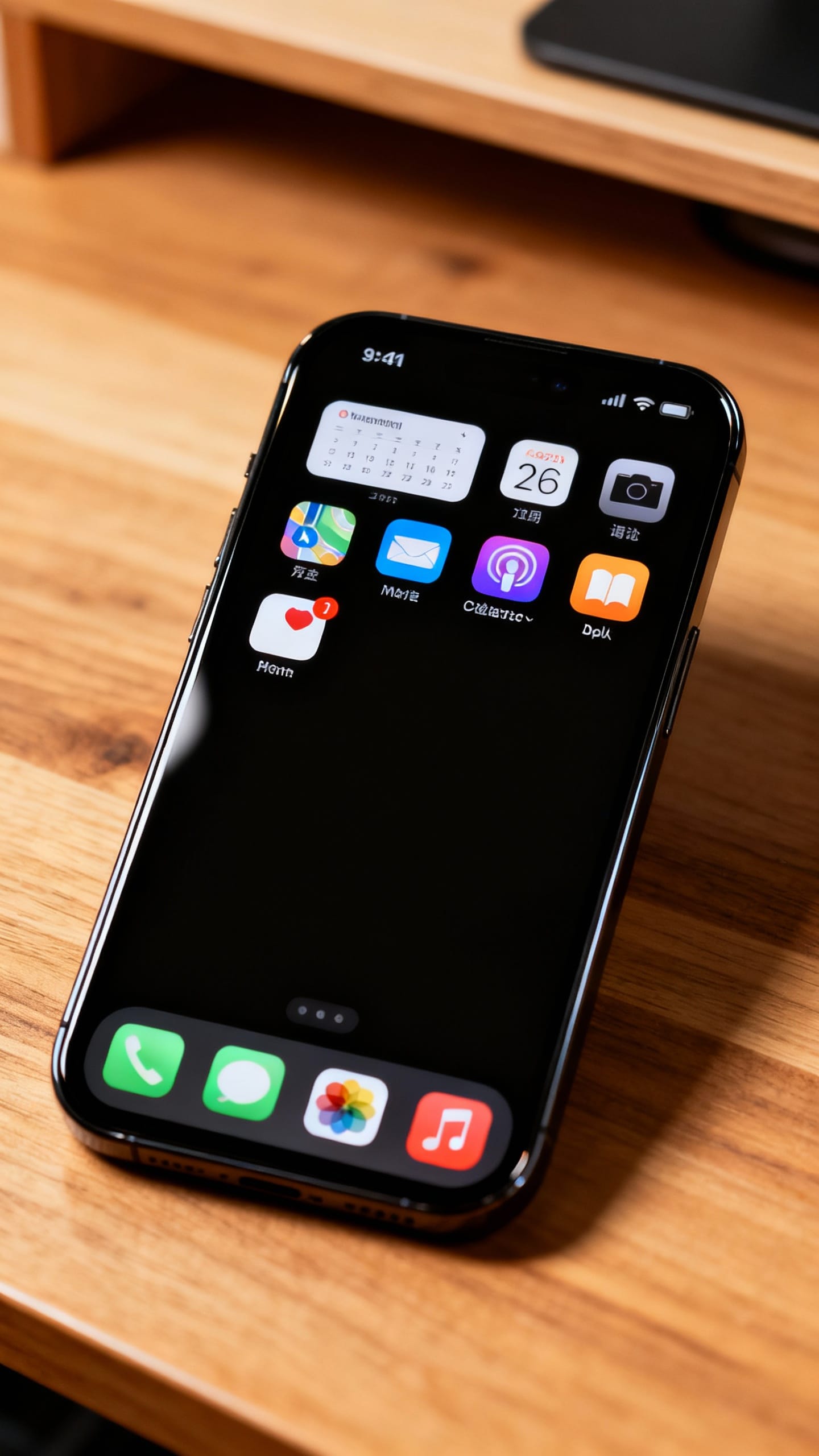
- Rule of Nine: Keep only nine core apps on the first screen. Everything else? Folders or the app library.
- Dock for daily drivers: Messages, Maps, Camera, and your Calendar or To-Do app.
- Widget with intent: Use one widget for calendar or tasks.
More than one looks cool but turns noisy fast.
Silence the dopamine circus
Turn off badges for social apps. Keep badges for messages, calendar, and banking. You’ll still see what matters without your phone screaming at you like a car alarm.
Screenshot discipline
Create a “Screenshots” album and move anything you keep there weekly.
If you didn’t use a screenshot in 14 days, delete it. Screenshot hoarding is a lifestyle; opt out.
File System Zen: Fewer Folders, Clear Names
You don’t need an elaborate hierarchy worthy of an archaeologist. You need clarity and speed.
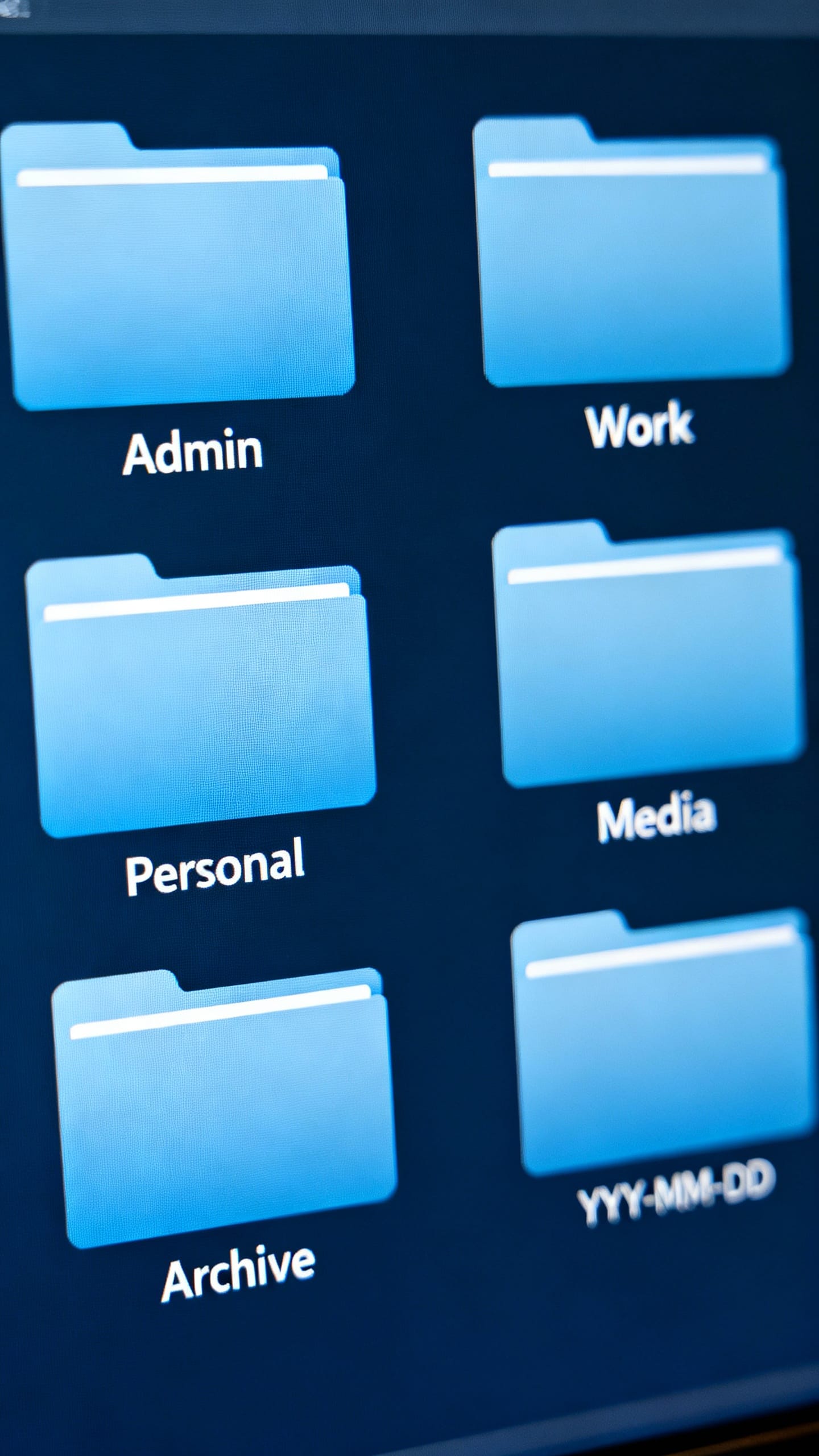
The 5-folder backbone
Use these top-level folders everywhere (Documents, Drive, iCloud—pick one home base):
- Admin (IDs, taxes, bills, receipts)
- Work (clients, projects, deliverables)
- Personal (hobbies, learning, health)
- Media (photos, video, audio)
- Archive (old stuff you might need someday)
Naming that actually helps
Use YYYY-MM-DD and a clear noun.
Example: 2025-03-15_Tax-Return.pdf. When you search later, you’ll love past-you. FYI, spaces or underscores work—just be consistent.
The Downloads trap
Downloads is a ferry, not a hotel.
Once a week:
- Move keepers to their proper folders.
- Delete duplicates and random installers.
- Empty the trash.
Email: Stop the Flood, Build the Flow
You probably don’t hate email—you hate endless noise. Let’s fix that.
Three-label strategy
Use:
- Action (needs a reply or task)
- Waiting (you’re waiting on someone)
- Reference (receipts, confirmations, info)
If your system has 20 labels, congrats—you built a maze for yourself.
Inbox zero-ish
You don’t need a pristine inbox. Aim for “daily reset.” Process in batches:
- Unsubscribe from one newsletter per day.
- If it takes less than 2 minutes, reply now.
- Else, move to Action and schedule it in your task app.
Smart filters = instant peace
Create filters to auto-archive:
- Order updates and shipping notifications (label: Reference)
- Social media notifications (skip inbox, check weekly)
- Newsletters (bundle to a digest, or one daily folder)
Photos: From Chaos Roll to Curated Memories
Photos multiply like rabbits.
You need a keeping standard.
- One rule: If you would not show it to someone, delete it.
- Burst control: Pick the best, trash the rest. Yes, even of that latte art.
- Monthly curation: Favorite the top 20 shots. That’s your highlight reel.
- Albums that matter: People, Trips, Documents, Pets.
No more “Random Stuff” albums—commit or delete.
Digitize critical docs
Scan passports, IDs, and insurance cards. Store in Admin > IDs with device encryption and a strong password. Share read-only copies with family if needed.
Adulting level: unlocked.
Notes and Tasks: Pick a Home, Stick to It
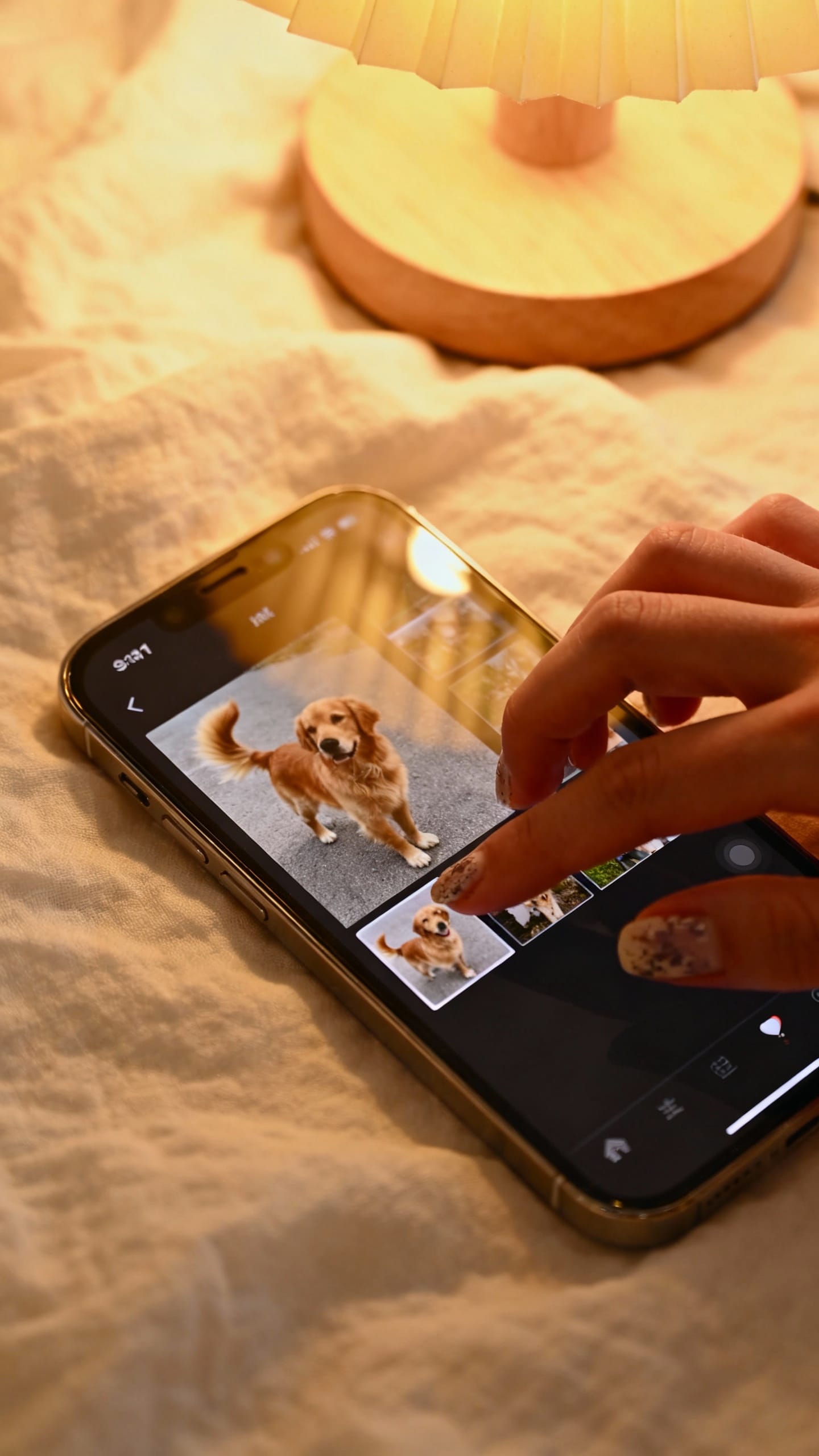
Trying three task apps is a hobby, not productivity. Choose one setup and live in it.
Notes that stay useful
- Two types: Reference (evergreen) and Scratch (temporary).
- Keep Reference notes tidy with simple headings and a few tags. No tag soup.
- Archive Scratch notes weekly so your list stays clean.
Tasks that actually get done
Use a simple structure:
- Today (3–5 must-dos)
- This Week (supporting tasks)
- Later (parking lot, review weekly)
Every task gets a verb and a noun: “Email Alex contract,” not “Alex.” Future-you will thank present-you.
Automation: Let Robots Handle the Boring Stuff
If you repeat it twice a week, automate it.
Your time matters.
- Phone: Set Focus modes for Work, Personal, and Sleep. Custom home screens per mode? Chef’s kiss.
- Computer: Use a cleanup script or app to auto-sort Downloads by file type and age.
- Email: Filters + aliases (news@, shopping@) to segment noise instantly.
- Cloud: Auto-backup photos and documents nightly.
Local external drive weekly. Two is one, one is none.
Keyboard shortcuts = secret superpower
Create text expansions for common snippets:
- ;addr → your mailing address
- ;bio → your short bio
- ;ty → “Thanks for the quick update—much appreciated!”
Small time-savers add up like compound interest.
Digital Boundaries: Because Attention Is Your Real Currency
You organized everything. Now protect it.
- Notification diet: Allow people, not platforms.
Humans get through. Apps wait.
- Default Do Not Disturb: Turn it on at meals and after 9 PM. Sleep is the best app.
- One-tab rule: If a tab hasn’t earned its spot, it closes.
Ruthless? Yes. Effective?
Also yes.
Mindful onboarding
Before you install a new app, ask:
- What problem does this solve?
- What will I delete because of it?
- How will I back up or export this data if I leave?
Shiny new tools are fun. Data lock-in isn’t.
FAQ
How often should I do a full digital declutter?
Quarterly works for most people. Do mini cleanups weekly and schedule a deeper pass every three months to archive old files, prune apps, and review automations.
Think of it like oil changes for your digital life.
What’s the best cloud storage: Google Drive, iCloud, or Dropbox?
Pick the one that integrates best with your devices and work. iCloud shines for Apple ecosystems, Google Drive wins for collaboration, and Dropbox handles cross-platform sync reliably. IMO, the best tool is the one you’ll actually maintain.
Do I need both cloud and local backups?
Yes. Cloud covers convenience and offsite protection; a local external drive covers speed and ransomware recovery.
Use the 3-2-1 rule: 3 copies, 2 different media, 1 offsite.
How do I stop my email from exploding again?
Build filters once, unsubscribe daily, and process email in two or three batches instead of all day. Turn off push notifications except for VIPs. Your inbox reflects your rules—or your lack of them.
What if I share devices with family?
Create separate user profiles where possible.
Use shared folders for Family Admin, Photos (Albums), and a shared calendar. Set clear “who owns what” rules so you don’t play tech support at midnight.
Any tips for keeping work and personal separate?
Use different browser profiles, separate task lists, and Focus modes tied to location or time. Keep work apps off your personal home screen and vice versa.
Boundaries help you switch off, not just switch apps.
Conclusion
Digital decluttering isn’t a one-time purge; it’s a rhythm. Start tiny, keep the things that earn their keep, and automate the boring bits. When your phone stops yelling and your files make sense, your brain can breathe.
That’s the whole point—less noise, more life.
For more Organization inspo, browse my category Home & Lifestyle and for digital Planner my 2$digitalshop.
EXPLORE MORE & SHINE DAILY
Discover self-care rituals, glow-enhancing routines, and beauty favorites in our BEAUTY section.
For cozy home inspiration, mindful routines, and soft everyday living, explore HOME & LIFESTYLE.
Find feminine outfits, effortless style ideas, and modern fashion inspiration in FASHION.
Love curated outfits and shoppable inspiration? Visit SHOP THE LOOK to recreate your favorite styles.
Looking for thoughtful ideas for every occasion? Browse our curated GIFT GUIDES.